

Modern AI coding agents like Claude Code, Cursor, and GitHub Copilot can dramatically accelerate evaluation development, but they need the right context to be effective. This guide shows you how to supercharge your AI coding assistant with Model Context Protocol (MCP) servers that provide real-time access to Eval Protocol documentation and examples.Documentation Index
Fetch the complete documentation index at: https://evalprotocol.io/llms.txt
Use this file to discover all available pages before exploring further.
Recommended MCP Servers
- Documentation Server:
https://evalprotocol.io/mcp- Complete EP documentation, tutorials, and API references - Deep Wiki Server:
https://mcp.deepwiki.com/mcp- GitHub repository analysis and code search across EP projects
Claude Code Integration
- Command Line Setup
- Configuration File
Enable Web Access: Since the prompt references GitHub URLs, enable web access in Claude Code’s settings by adding the WebFetch tool permission in
.claude/settings.json.Cursor Integration
- One-Click Install
- Manual Configuration
Install both MCP servers with one click each:
Documentation Server
Access complete EP documentation, tutorials, and API references

Deep Wiki Server
GitHub repository analysis and code search across EP projects
After clicking the install button above, you’ll need to press the “Install” button in Cursor to complete the setup: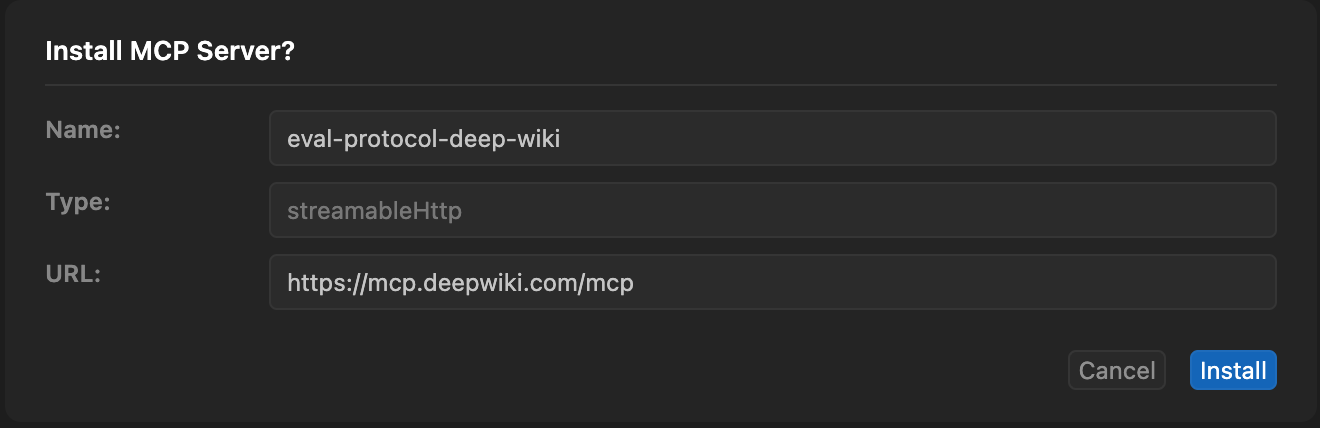
Example Prompt to Develop With
With your MCP environment configured, the next step is to give your AI coding agent its mission. We start with a general prompt that defines its role and how to use Eval Protocol. Below that, you append the specific instructions for your project. This “meta-prompting” approach is crucial for guiding the agent effectively. Here is a prompt template to use:Next Steps
With MCP-enhanced AI coding agents, you can:- Build faster: Leverage real-time EP knowledge for accurate code generation
- Reduce errors: Get context-aware suggestions that follow EP best practices
- Learn efficiently: Ask specific questions and get authoritative answers
- Scale confidently: Use proven patterns from the EP codebase and documentation